
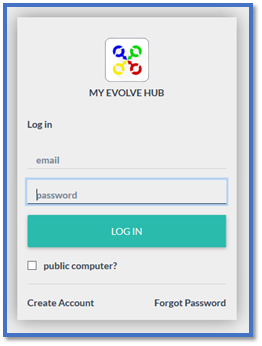
Login to My Evolve Hub –
Using Your (Parent/Carer) email and password –
As you will see in the below image, top left corner – This is you, the account holder -
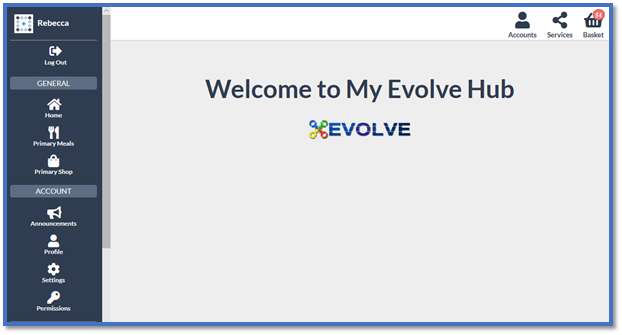
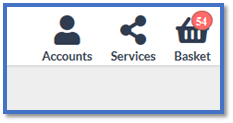
To be able to order and pay for items for your child you need to select the Accounts icon (top right)
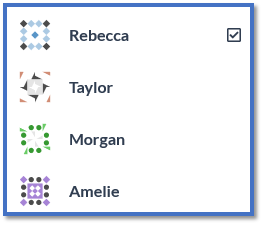
You will then see a list with your name (the account holder) at the top and your child/children’s names below, select the child you wish to make an order for –
It will show you in the top left who you are ordering for (your name - acting for - child's name) –
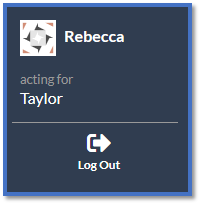
You need to change this for each individual child that you are ordering for.
In the top right corner select the Services Icon –
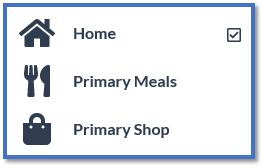
The below options will then be shown – select Primary Meals -
You will then see the Menu –
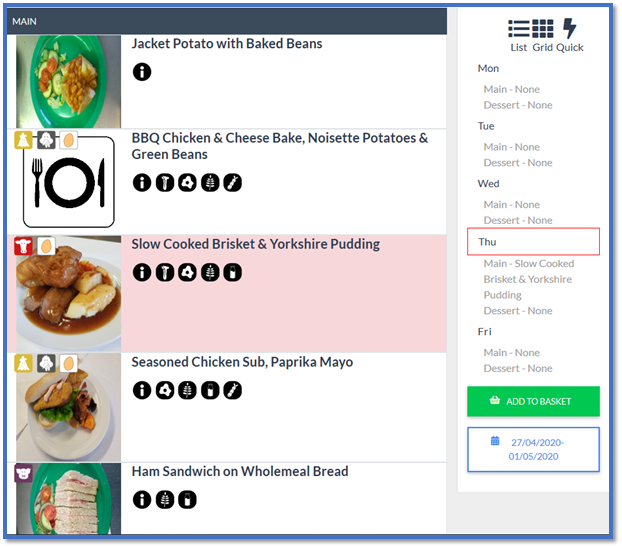
You will see the meal options below, also on the right hand side is the days/dates, please select which day you are ordering for and choose the meal for your child, when the meal is selected it will highlight in pink (as below we have selected Slow Cooked Brisket and Yorkshire Pudding).
Once you have selected your meal select Add To Basket. (Do this for each day and each child)
You can change the date for the week you wish to order for by selecting the calendar, it will always open up on the Monday so if there is a Bank Holiday or Inset Day the menu will be blank in this instance select the next available day.
Select the Basket icon (top right)
Scroll to the bottom and Select Process Basket
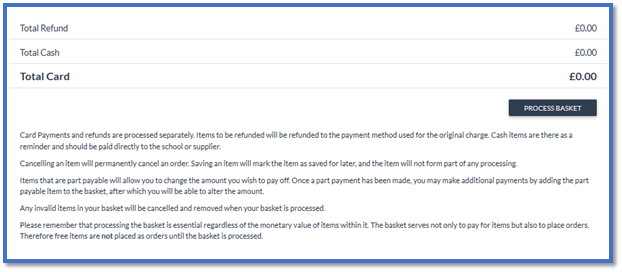
** Please note If you don’t process the basket the order will not go through to the school. If the child is on free school meals the balance will be £0.00 the basket still needs to be processed for the order to go through **
Comments
0 comments
Article is closed for comments.