
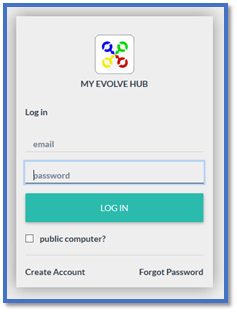
Login to My Evolve Hub –
Using Your (Parent/Carer) email and password –
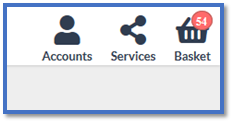
As you will see in the below image, top left corner – This is you, the account holder -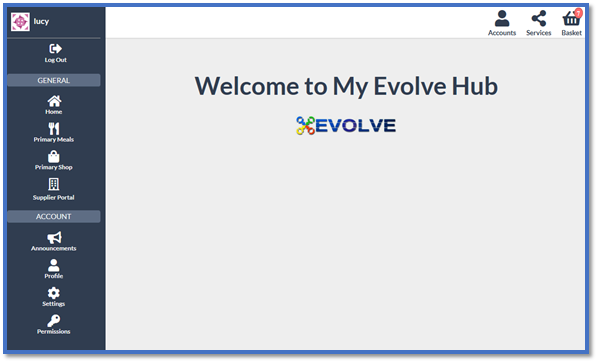
In the top right corner select the Services Icon –
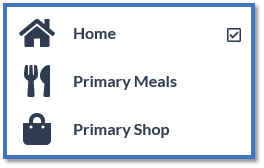
The below options will then be shown, for trips/clubs/lessons/toast/milk/misc items – Select Primary Shop -
Once you have selected the Primary shop you then need to choose the child you wish to place an order for -
To be able to order and pay for items for your child select the Accounts icon (top right)
You will then see a list with your name (the account holder) and your child/children’s names –
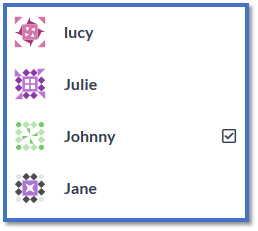
Select the child you wish to book a trip/club/lesson for.
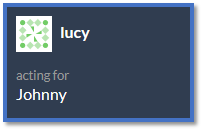
It will show you in the top left who you are acting for (ordering/booking for) –
You will then see the below page where you will be able to make your selection by adding to the basket, you can also navigate through the trips, clubs, lessons, misc tabs to filter the list -
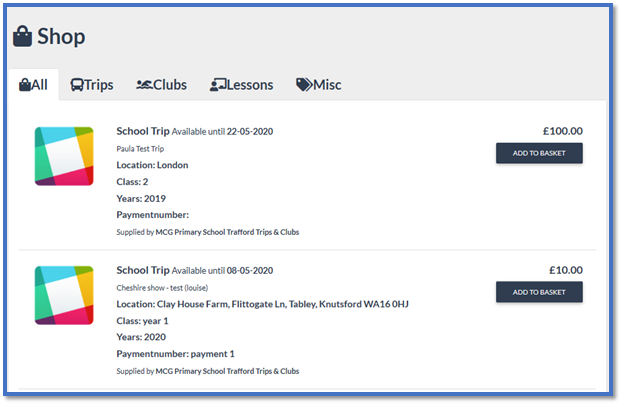
Once you have chosen select ADD TO BASKET
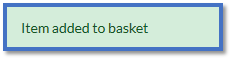
You will then see the below message for confirmation –
Select the Basket icon (top right)
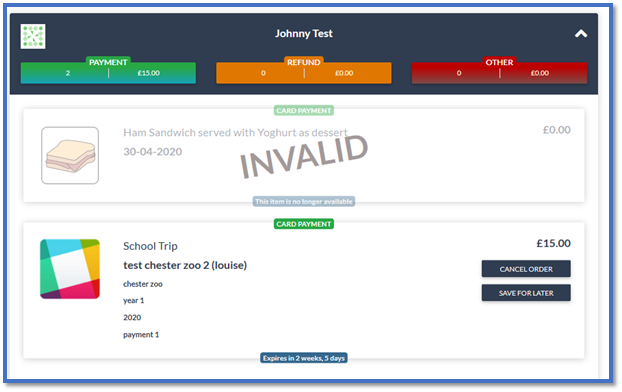
You will then see the Trip/club/lesson under your child’s name, where you can Cancel Order, Save For Later or process the basket to confirm
Scroll to the bottom and select PROCESS BASKET –
This will then take you through to the payment page.
** Please note that if you do not process the basket the order is not complete and your child will not be guaranteed a place **.
Comments
0 comments
Article is closed for comments.